How to Preview Your Search Result Snippet
Visualizing how your webpage appears on Google search results pages prevents embarrassing truncation errors and maximizes organic click-through rates.

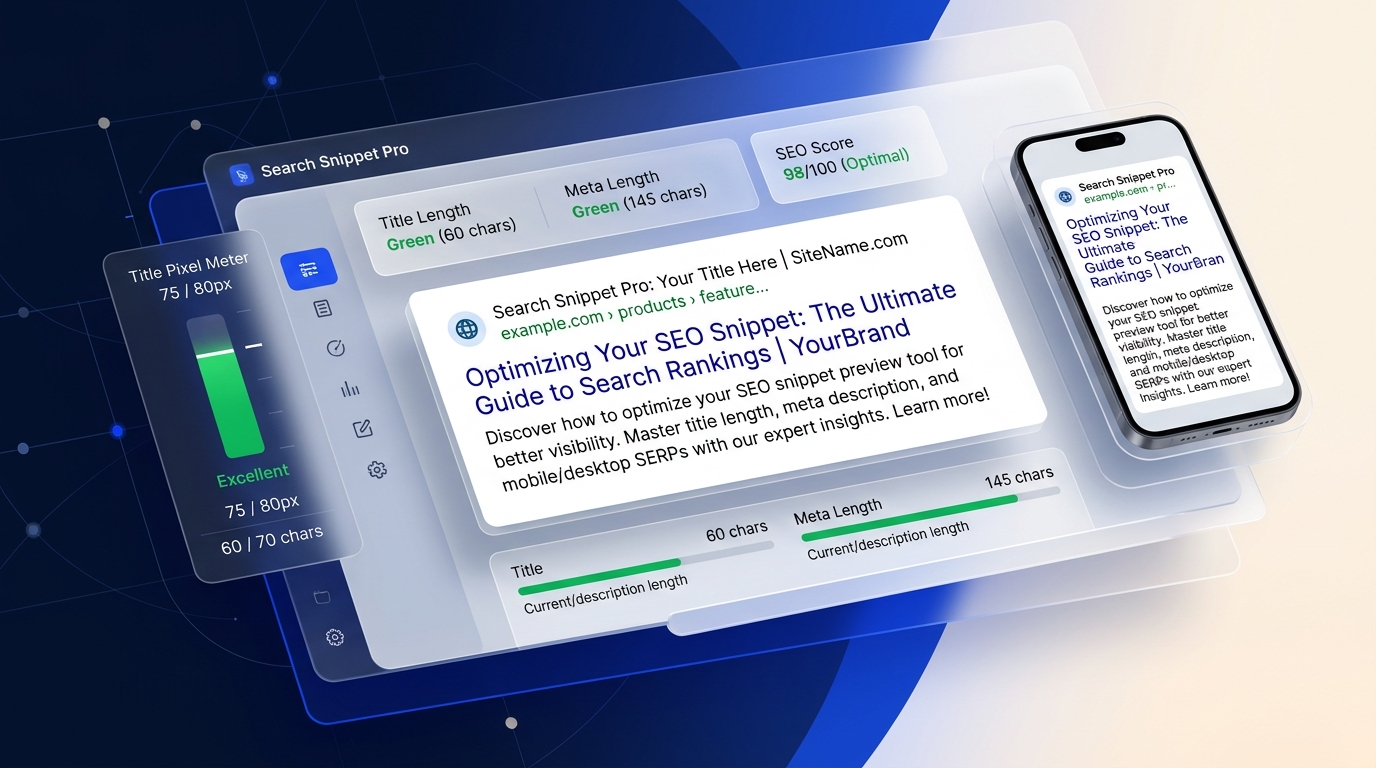
The Anatomy of a Modern Google Search Snippet
Search engine result pages (SERPs) have evolved from plain blue links into rich, multi-layered visual previews. When a user conducts a query on Google, each organic result is composed of several interlocking interface elements:
- Favicon & Brand Attribution: A small 16x16 or 32x32 pixel brand icon accompanied by the clean site name.
- Breadcrumb / URL Path: The structured hierarchical route representing the page's position within your site architecture (e.g.,
smartcalcbox.com > tools > title-checker). - The Title Headline: The clickable anchor, rendered in blue/purple typography, which typically pulls from your HTML
<title>tag. - Rich Metadata Enhancements: Star ratings (
4.9 ★★★★★), review counts, publication dates, or pricing indications generated through structured data markup. - The Descriptive Snippet: Two lines of contextual copy explaining the page's content, drawn from your meta description or on-page text.
Visualizing these elements in combination before going live ensures your listing looks cohesive, trustworthy, and visually appealing.
Desktop vs. Mobile Viewport Differences
Google uses a mobile-first indexing system, meaning your mobile search appearance is paramount. However, search snippets render differently across desktop monitors and mobile smartphones.
| Feature | Desktop Google SERP | Mobile Google SERP |
|---|---|---|
| Title Container Width | ~580 to 600 pixels | ~650 to 700 pixels (often wraps to 2 lines) |
| Description Length | ~960 to 990 pixels (~155-160 chars) | ~680 to 750 pixels (~120-130 chars) |
| Favicon Position | Precedes site name above headline | Centered alongside brand title |
| Layout | Wider horizontal cards | Compact, vertically stacked card blocks |
Because of these differences, a title tag that fits comfortably on mobile might truncate on desktop, while a description that looks balanced on desktop might lose its final call-to-action on a smartphone screen. Previewing both viewports simultaneously is essential for comprehensive quality control.
Testing Rich Elements: Favicons, Breadcrumbs, and Stars
Plain snippets often struggle to stand out in competitive search verticals. Incorporating rich visual signals elevates your organic visibility:
1. High-Resolution Favicons
Google requires favicons to be square, at least 48x48 pixels (or multiples thereof like 96x96, 144x144), and accessible to Googlebot. A crisp, recognizable brand favicon reinforces credibility before the user even reads your headline.
2. Semantic Breadcrumbs
Instead of exposing raw query strings or unformatted permalinks (example.com/index.php?id=381), implement clean Schema.org BreadcrumbList structured data. Google translates this markup into clean, readable breadcrumb navigation paths directly in search listings.
3. Review Star Ratings
For eligible entities (such as physical products, books, software applications, or courses), valid AggregateRating schema markup enables glowing gold review stars in Google search results. Star ratings draw attention and can boost click-through rates by 15% to 30%.
Step-by-Step: Using the SERP Snippet Preview Tool
Using our dedicated SERP Snippet Preview Tool simplifies metadata validation:
- Enter Your Target URL: Input your proposed canonical URL. Watch the breadcrumb preview transform in real time.
- Type Your Title Tag: As you type, monitor the character counter and horizontal pixel gauge. If the bar crosses 580 pixels, trim non-essential adjectives.
- Draft Your Meta Description: Insert a concise description between 140 and 160 characters. Ensure your primary call-to-action is positioned before the 125-character mark.
- Toggle Rich Features: Enable star ratings or publication dates to inspect how extra markup affects layout balance.
- Switch Device Tabs: Toggle between Desktop and Mobile tabs to verify readability across all screen widths.
- Export Your Markup: Click to copy the generated
<title>and<meta name="description">HTML tags directly into your codebase.
Validating Snippets After Publication
Once your page is published, follow these verification steps:
- Inspect the URL in Google Search Console using the URL Inspection Tool to verify that Googlebot successfully fetches your new metadata.
- Request indexing if you need Google to update the cached snippet promptly following a major redesign.
- Monitor organic click-through rate trends in Google Search Console's Performance report over a 30-day window to evaluate the real-world impact of your snippet optimizations.
SERP Snippet Preview Tool
Simulate desktop and mobile Google search result snippets with breadcrumbs, favicons, and star ratings.
Title Tag Length Checker
Check title tag character counts and pixel width against Google's desktop and mobile snippet thresholds.
Meta Description Length Checker
Calculate meta description character lengths and pixel dimensions to keep descriptions concise and compelling.
Frequently Asked Questions
Why does my live Google snippet look different from the preview tool?
Preview tools accurately replicate Google's standard layout and truncation thresholds. However, Google's live algorithms dynamically adapt snippets depending on the user's specific query, location, and device.
Can I force Google to show my exact meta description?
No webmaster can force Google to display a specific snippet. You can, however, use the 'data-nosnippet' HTML attribute or 'max-snippet' robots directive to prevent Google from displaying specific text passages.
How long does it take for Google to update a search snippet after I change it?
Typically between a few hours to several days, depending on how frequently Googlebot crawls your domain. Submitting the updated URL in Google Search Console speeds up the re-indexing process.
About the Author: Alex Mercer
Lead Technical SEO Specialist & Web EngineerAlex is a web engineer and technical SEO specialist with over a decade of hands-on experience building web applications, optimizing site architectures, and resolving crawl and indexing challenges. He oversees tool development and technical accuracy across SmartCalcBox.
Related SEO Guides & Tutorials
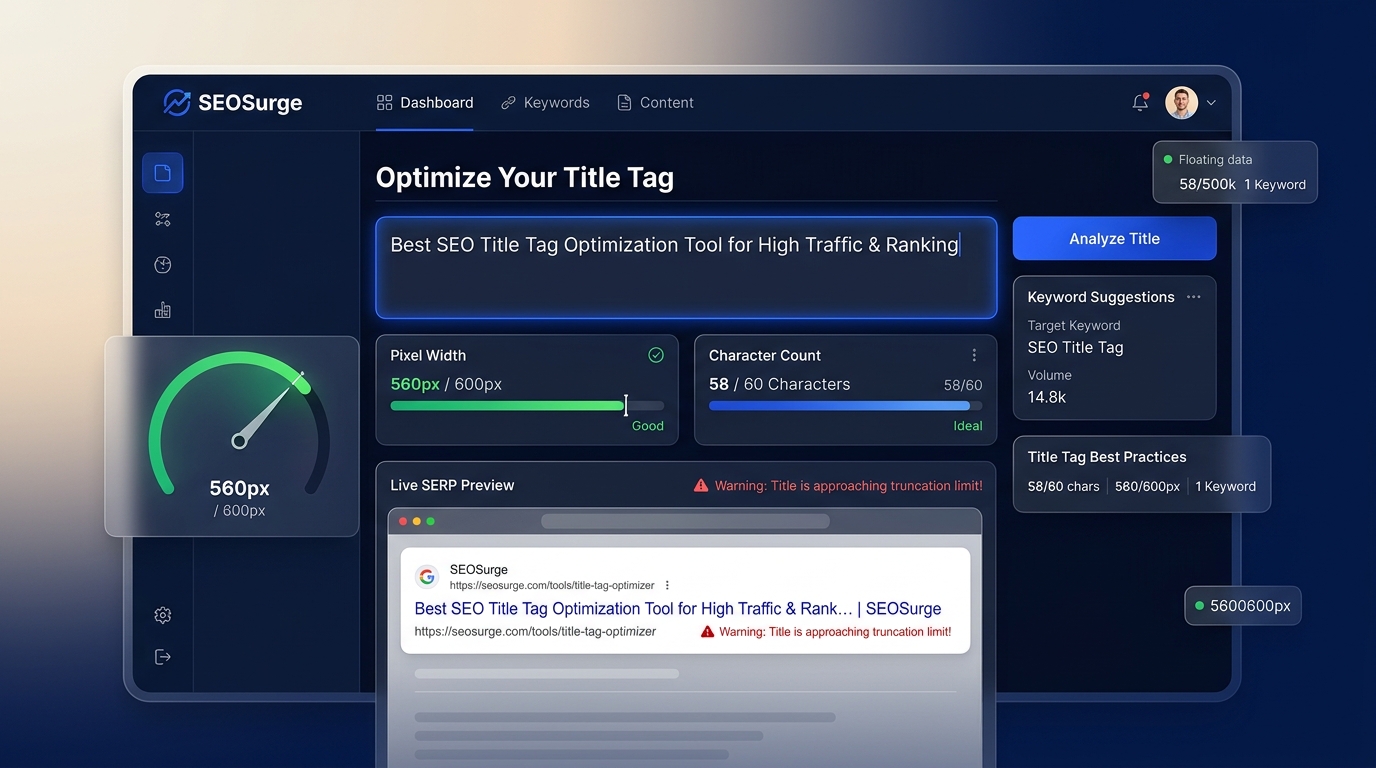
How to Write SEO Title Tags That Describe Your Page Clearly
Title tags are your website's digital storefront signboards in search engine results. Discover how to balance keyword placement, pixel width constraints, and compelling copywriting.
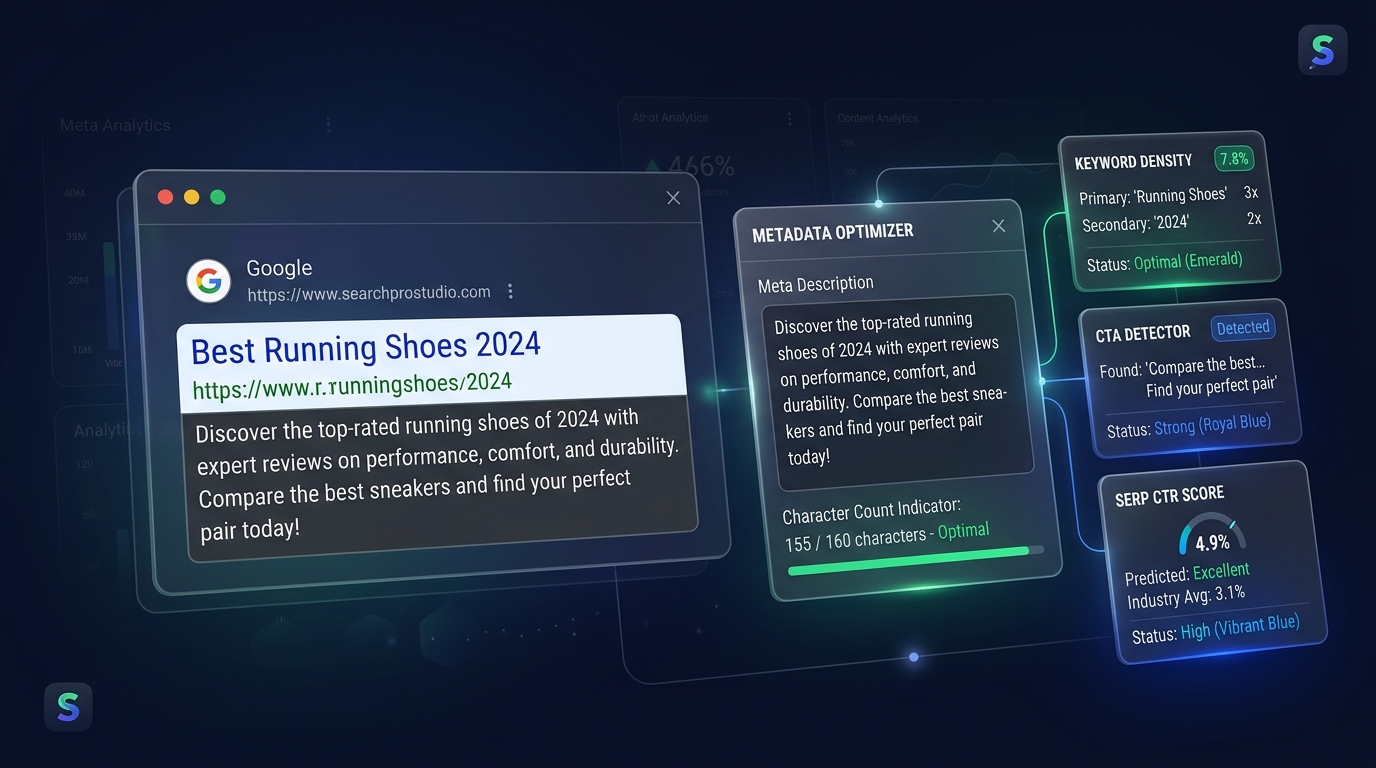
Meta Description Best Practices for Website Owners
While meta descriptions are not a direct ranking factor, they serve as your unpaid organic ad copy. Learn how to write descriptions that turn searchers into visitors.

JSON-LD Structured Data: A Practical Beginner's Guide
Demystify JSON-LD syntax. Learn how curly braces, arrays, entity graphs, and Schema.org properties translate into rich search snippets.